When I write for my public account, I often don’t get stuck on writing the main text.
More often, the materials are scattered everywhere.
A webpage article, two posts on X, a segment of YouTube video subtitles, plus a few interesting comments under Hacker News.
I’ve seen all these. But when it’s time to write, I can’t find them.
My old method was clumsy: open a webpage, copy a segment, paste it into notes; then open another page, copy another segment. When there were images, quotes, heading levels, I had to tidy them up slowly by myself.
After collecting, the notes looked like a bunch of cardboard boxes just moved into a room.
Everything was there, but hard to use.
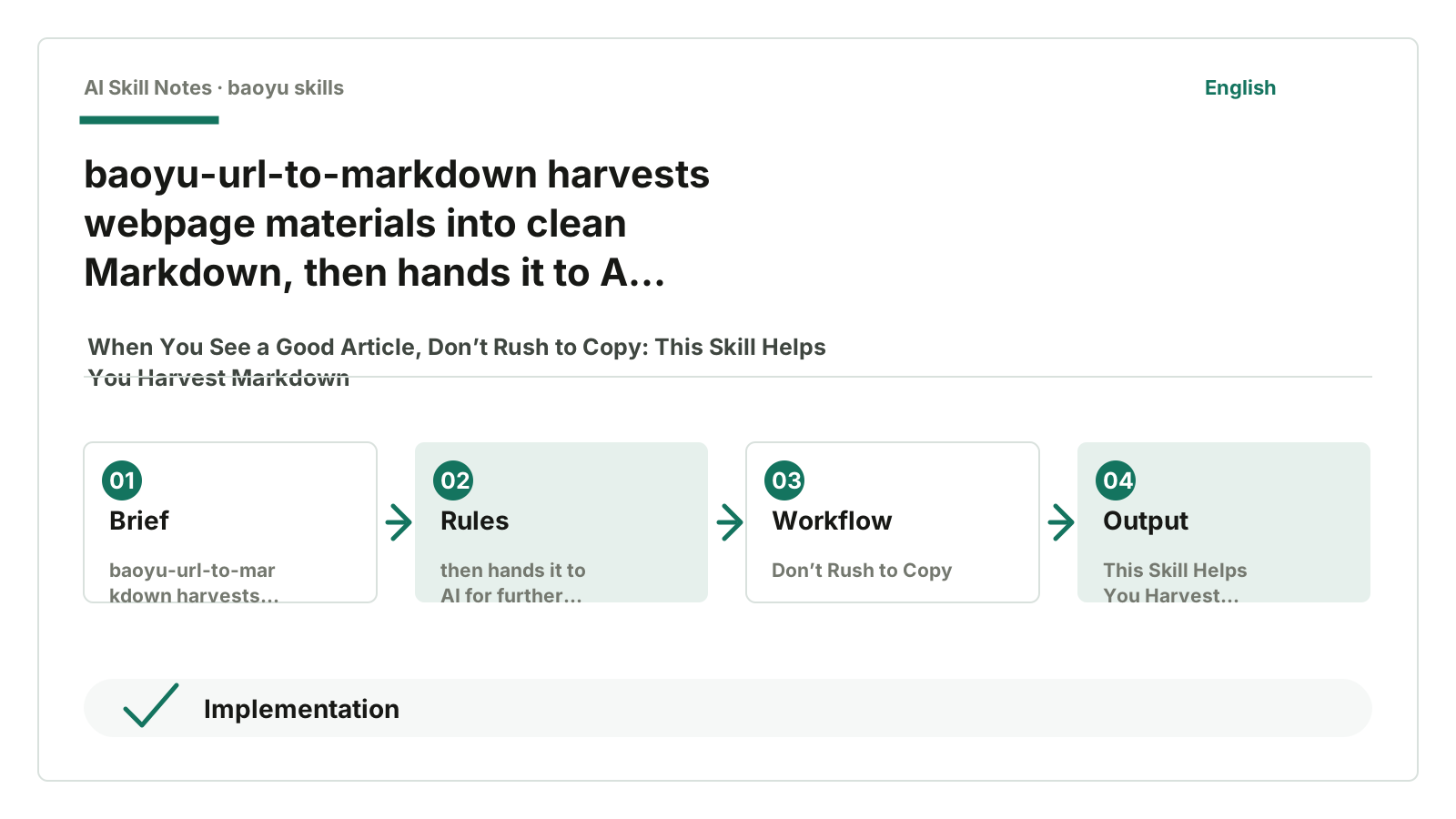
baoyu-url-to-markdown solves this problem: it grabs webpage content and organizes it into clean Markdown.
It’s not a writing Skill.
It’s more like a storage box before writing.
1. What Problem Does It Solve: Bringing Materials Indoors
Many people ask AI to write articles starting with:
Help me write a public account article on a certain topic.
AI can write.
But if you don’t provide materials, it can only write a generic article based on common knowledge.
Generic articles often have one flaw: smooth sentences but empty content.
What you really need is to first bring the materials in.
For example, you see an English tutorial and want to break down its ideas into a Chinese article; or you see an X thread with some good judgments; or you want to organize YouTube video subtitles into reading notes.
At this point, the question isn’t “Can AI summarize?”
The question is: can these materials first become a clean, citable, and editable file?
baoyu-url-to-markdown does exactly this step.
It turns URLs into Markdown. For X, YouTube, Hacker News, and other content, it has special adapter logic. For pages requiring login or captchas, it also has an interactive waiting mode.
This sounds trivial.
But many small writing hassles start here.
2. See the Effect Directly: Webpages Turn into Usable Materials
You can give AI a webpage URL and say:
Please use baoyu-url-to-markdown to save this webpage as Markdown, and try to download images locally as well.
It will do several things:
- Open the page and read the main text.
- Decide which scraping method suits this page.
- Organize the title, main text, links, and images into Markdown.
- Save it to a local file, so you can continue summarizing, translating, or rewriting later.
In the end, you get a file, not just a temporary copied text.
This is very practical.
A file means you can keep processing it later.
You can ask AI to write a summary based on this file, extract viewpoints, translate, make topic cards, or combine several materials into your own article.
Once materials become files, they’re less likely to get lost.
3. How to Use: The Shortest Getting-Started Path
This Skill is in Baoyu’s Skills repository:
https://github.com/JimLiu/baoyu-skills
Give this GitHub URL to AI, then say:
Help me install the baoyu-url-to-markdown Skill from this repo.
After installation, usage is simple.
Give it a URL and say you want to save it as Markdown.
For example:
Please save this webpage as Markdown and put it in my materials folder.
If the page has images, add:
Also download images locally and put them with the Markdown.
If the page requires login, just say:
If login or captcha is needed, please open the browser and wait for me to handle it.
Ordinary users don’t need to remember parameters.
The only sentence you need to remember: give the webpage to AI and let it use this Skill to harvest Markdown.
4. Why It’s Useful: It Turns “Webpage Scraping” into a Process
This Skill is useful not because it can open webpages.
Many tools can open webpages.
What’s really worth learning is its three-layer design.
First, the trigger conditions are very clear
As long as the user says “save webpage,” “URL to Markdown,” or “save this post,” it should activate.
A good Skill doesn’t wait for the user to say the exact command.
Ordinary people won’t say “please call the webpage scraping adapter and output Markdown.” They just say: “Help me save this article.”
Its description is very practical: see URL, save webpage, convert to Markdown, then trigger.
This is great for learning.
When writing Skills, don’t just write the capability name. Write how users would say it.
Second, it leaves different handling methods for different sources
This isn’t magical, just normal engineering.
Regular webpages, X threads, YouTube subtitles, Hacker News comments — their content structures are different.
Forcing one method on all can get something, but someone has to tidy it later.
baoyu-url-to-markdown is practical here: if it recognizes the source, it uses the corresponding adapter; if not, it falls back to generic page handling.
For users, that’s enough.
No need to care about how it routes internally, just that the final Markdown isn’t too messy.
Third, it writes quality checks into the Skill
This Skill has a reminder: the default headless browser scraping is only a temporary result. After scraping, check the Markdown.
This is worth learning.
It doesn’t pretend the tool is always reliable.
Some sites return incomplete pages to headless browsers. Some pages look scraped but the main text is incomplete. A good Skill tells AI when to doubt its own work.
A Skill doesn’t just teach AI how to do it.
It also teaches AI when to suspect it didn’t do well enough.
5. How It Actually Works
Here’s one thing to clarify.
baoyu-url-to-markdown isn’t purely prompt-based, nor does it let the large model open webpages, copy content, and organize Markdown by itself.
The real worker is a CLI:
skills/baoyu-url-to-markdown/scripts/baoyu-fetch
This CLI is written in Bun / TypeScript. The Skill itself is more like an operation guide, telling AI when to call it, how to generate output paths, whether to download images, and how to check quality after scraping.
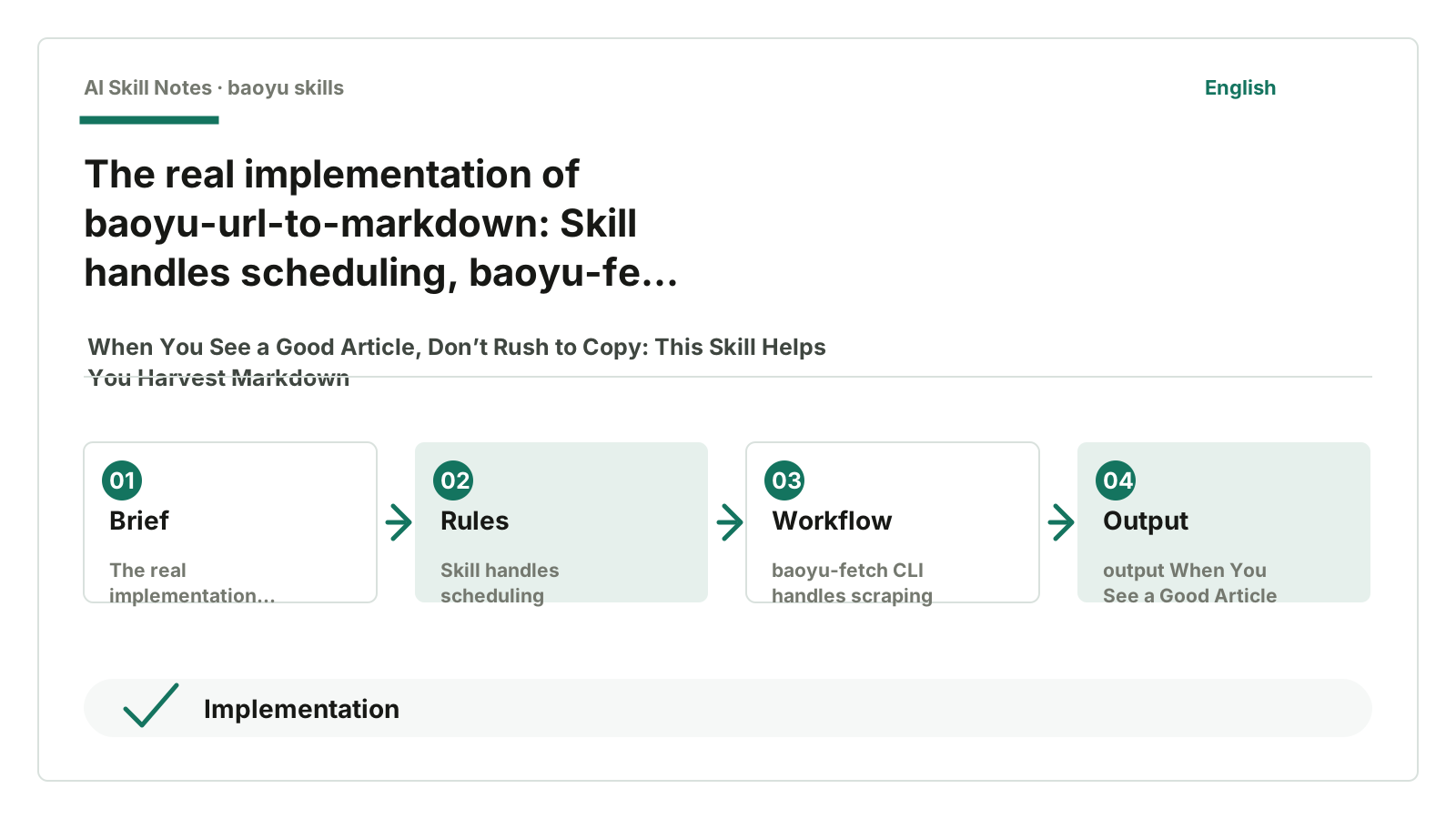
So it’s actually two layers:
Skill: responsible for scheduling and rules
baoyu-fetch: responsible for scraping, parsing, converting, and saving
Don’t get this wrong.
If you only write a Skill and ask the large model to “help me save a webpage,” the effect won’t be stable. Webpage scraping still needs browsers, parsers, and scripts.
Let’s look at a concrete scenario.
You give AI a link and say:
Help me save this article as Markdown, and download images locally.
What really happens is roughly this.
Step 1: AI decides how to use this tool
The user didn’t specify a filename or command.
Here the Skill kicks in.
It tells AI: whenever the user wants to “save webpage” or “URL to Markdown,” it should call baoyu-fetch.
AI first does some small but practical things:
1. Check if the input is a URL.
2. Choose a reasonable output file path.
3. Decide if the user wants to download images.
4. Assemble the actual CLI command to run.
For example, it might become something like:
baoyu-fetch https://example.com/article --output url-to-markdown/example/article/article.md --download-media
Ordinary users don’t need to remember this command.
But you should know: AI isn’t copying and pasting on the webpage itself; it’s calling the underlying tool according to the Skill instructions.
Step 2: baoyu-fetch opens the webpage with Chrome
Next, the CLI does the work.
It won’t just do a simple fetch(url).
Many webpages are frontend-rendered now. Directly requesting HTML might only get a shell; the main text appears only after the browser runs JavaScript.
So baoyu-fetch uses Chrome CDP to open the page.
You can think of CDP as “script-controlled Chrome”:
Open webpage
Wait for loading
Scroll a few times
Observe network requests
Get page HTML
If the page is stuck on login, captcha, or Cloudflare checks, it can detect that and tell AI: this can’t be forcibly scraped now; the user needs to handle it in the browser.
Step 3: Decide which handler should process this link
Here, the adapter can be understood as a “specialized handler for a certain type of website.”
Why have this?
Because different sites hide content in different places.
The main text of a normal article is usually in the page HTML.
YouTube’s focus isn’t the page text but subtitles and video metadata.
Hacker News focuses on comment threads.
X / Twitter often has key data in JSON returned during page loading.
So it doesn’t do the same thing for every URL.
It first identifies the page type, then hands it to the corresponding handler:
X / Twitter: use x adapter
YouTube: use youtube adapter
Hacker News: use hn adapter
Other webpages: use generic adapter
For example, if you give a YouTube link, it won’t foolishly treat the whole YouTube page as an article.
It prioritizes subtitles, chapters, cover image, and video info.
If it’s Hacker News, it preserves comment hierarchy.
If it’s a normal article, it uses generic webpage processing.
This is the adapter’s role: not the step of “converting HTML to Markdown,” but deciding “how to extract content from this link.”
Step 4: How a normal article turns from webpage to Markdown
If it’s a normal webpage, it goes to the generic adapter.
This is closest to what we usually call “webpage to Markdown.”
The process can be broken down into three steps.
First, get the page already rendered in the browser.
Note, it’s not converting HTML into a webpage.
The webpage is already open in Chrome. The script takes the current DOM from Chrome.
You can think of the DOM as the page structure seen by the browser.
The script copies this structure and cleans it up:
Convert relative links to full links
Fill in real URLs for lazy-loaded images
Expand content inside Shadow DOM
Get a more complete HTML
At this point, it has HTML, not Markdown yet.
Second, find the main text from the HTML.
Webpage HTML has many things that aren’t main text:
Navigation bars
Ads
Recommended reading
Comments
Footers
Login popups
These shouldn’t all go into Markdown.
So it first tries to extract the main text using Defuddle.
If that doesn’t work well, it falls back to tools like Mozilla Readability.
You can think of these as “main text filters”: they try to pick out the real article body from the full HTML.
Third, convert the main text HTML to Markdown.
This step uses Turndown.
For example, if the webpage originally has:
<h2>Title</h2>
<p>First paragraph</p>
<img src="cover.png">
It roughly converts to:
## Title

First paragraph
So the core chain for normal webpages is:
Chrome opens webpage
-> get rendered DOM/HTML
-> Defuddle / Readability extract main text
-> Turndown converts main text HTML to Markdown
-> save to local file
There’s no mysterious “AI understanding the webpage.”
AI doesn’t convert HTML line by line to Markdown.
The real format conversion is done by scripts and libraries.
Step 5: If downloading images, convert links to local paths
If you say “also download images locally,” it does one more step.
It downloads remote images referenced in the Markdown and puts them next to the article:
article.md
imgs/
  image-1.png
  image-2.png
videos/
  video-1.mp4
Then it changes image links in Markdown to local paths.
This way, when you organize materials, move files, or send to AI for further processing, you won’t lose images if the original webpage images disappear.
Step 6: AI checks if the result is reliable
Running the script doesn’t guarantee success.
Some sites return login pages.
Some return lots of navigation and ads.
Some pages have very short main text, obviously incomplete.
Here AI comes back into play.
The Skill asks AI to look over the Markdown after scraping:
Is the title the target article?
Is the main text long enough?
Is it all navigation, login, or error pages?
Are image links handled properly?
If it finds a login page, AI should try another approach:
Open visible Chrome
Let the user log in or pass captcha
Then continue scraping
So this process isn’t “AI replaces scripts,” nor “scripts replace AI.”
More accurately:
Scripts handle deterministic scraping and conversion.
AI ensures correct use of scripts, spots exceptions, and presents results to users.
This is the real lesson from baoyu-url-to-markdown.
If You Want to Build Something Similar
You can refer to its layering instead of just copying a prompt.
A minimal version could be:
1. Write a CLI that accepts URL and output path.
2. Use Chrome CDP or Playwright to open the webpage.
3. Wait for page load, scroll if needed.
4. Use Readability / Defuddle to extract main text.
5. Use Turndown to convert HTML to Markdown.
6. Write Markdown to file.
7. Write a Skill to tell AI when to call this CLI, how to check results, and retry on failure.
To support special sites, add adapters:
YouTube: extract subtitles separately.
Comments: preserve comment hierarchy.
Social posts: handle threads, quotes, images, and videos.
Normal webpages: use generic main text extraction.
This is what these Skills are really about.
Not “write a long prompt.”
But put the large model in the scheduling layer, and leave deterministic scraping and conversion to scripts.
6. What Could Be Improved
The version I most want to improve is a “public account topic material box.”
It wouldn’t just save webpages but also do one more step after saving:
What topics is this material suitable for?
What citable judgments does it contain?
What parts need secondary verification?
This way, it’s not just a material scraping tool.
It becomes the first sorting step before writing.
For content creators, this step is valuable.
Because many articles don’t lack expression, they lack materials.
If materials haven’t been brought indoors, don’t rush to decorate.
7. Final Copyable Action Steps
If you just want to use it:
Next time you see a webpage you want to save, don’t copy first. Just give the link to AI and say:
Please use baoyu-url-to-markdown to save it as Markdown, and put images locally.
If you want to learn to write it yourself:
Remember this design: first identify material type, then choose handling method, finally check output quality.
A good Skill doesn’t just complete one step.
It manages the places where materials are easy to lose, get messy, or get partially scraped, ahead of time.