Writing for a WeChat Official Account has a frustrating moment.
It’s not writing the introduction, nor is it tweaking the title.
It’s when the article is almost done, and you have to move it into the official account backend.
You have to copy the title.
Fill in the summary.
Paste the main content.
Upload images.
Choose the cover image.
Finally, you have to preview it on your phone to check if the images are blurry, paragraphs cramped, or if the cover crop looks weird.
None of these steps are hard.
But they’re tedious.
Tedious tasks drain energy. When you’re writing, you’re still motivated, but by the time you reach publishing, you’re already annoyed.
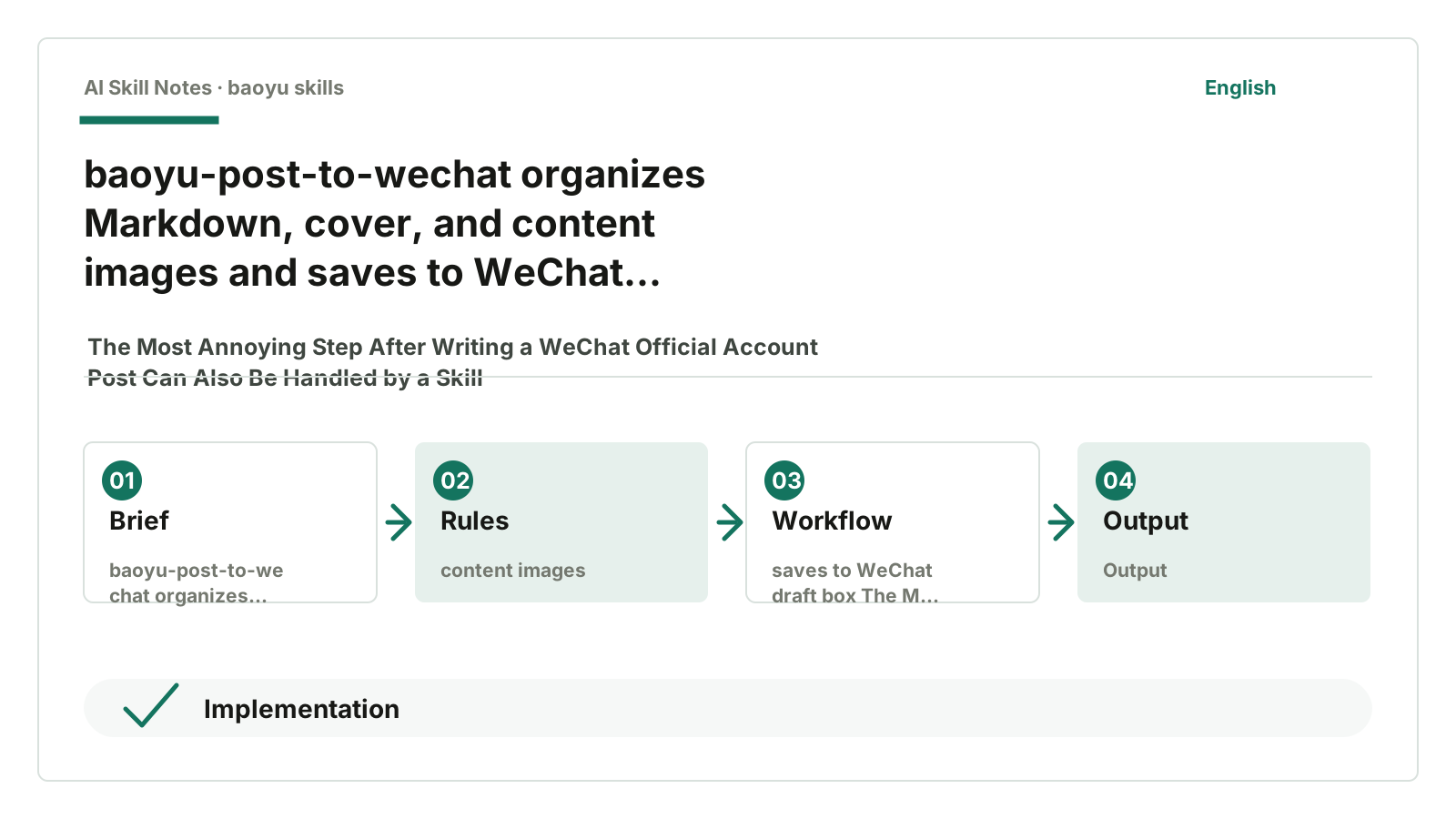
baoyu-post-to-wechat handles this last mile.
It organizes Markdown, cover images, and content images, then saves everything to the WeChat Official Account draft box.
Note: it saves to the draft box.
It does not directly publish.
I really like this. Automation handles the transfer, humans handle the final check.
1. It removes the copy-paste step
The hardest part of writing for WeChat Official Accounts isn’t always writing.
It’s the pile of chores after finishing.
Titles that look fine in Markdown might lose formatting in the editor.
Local images have to be uploaded one by one.
The cover image must be uploaded separately.
External links can’t be handled as-is in WeChat.
If you only post occasionally, you can tolerate this.
But if you want to do a series, post weekly, or even multiple times a week, these tasks become fixed overhead.
The value of baoyu-post-to-wechat is clear: turn fixed overhead into a fixed process.
Writers touch the backend less.
Articles go automatically into drafts, then humans review.
This is more reliable than trying to “fully automate publishing” from the start.
2. See it in action: a Markdown article saved to drafts
It handles very common things:
A Markdown article body
A cover image
Images inside the article
Official Account AppID / AppSecret
IP whitelist for the Official Account backend
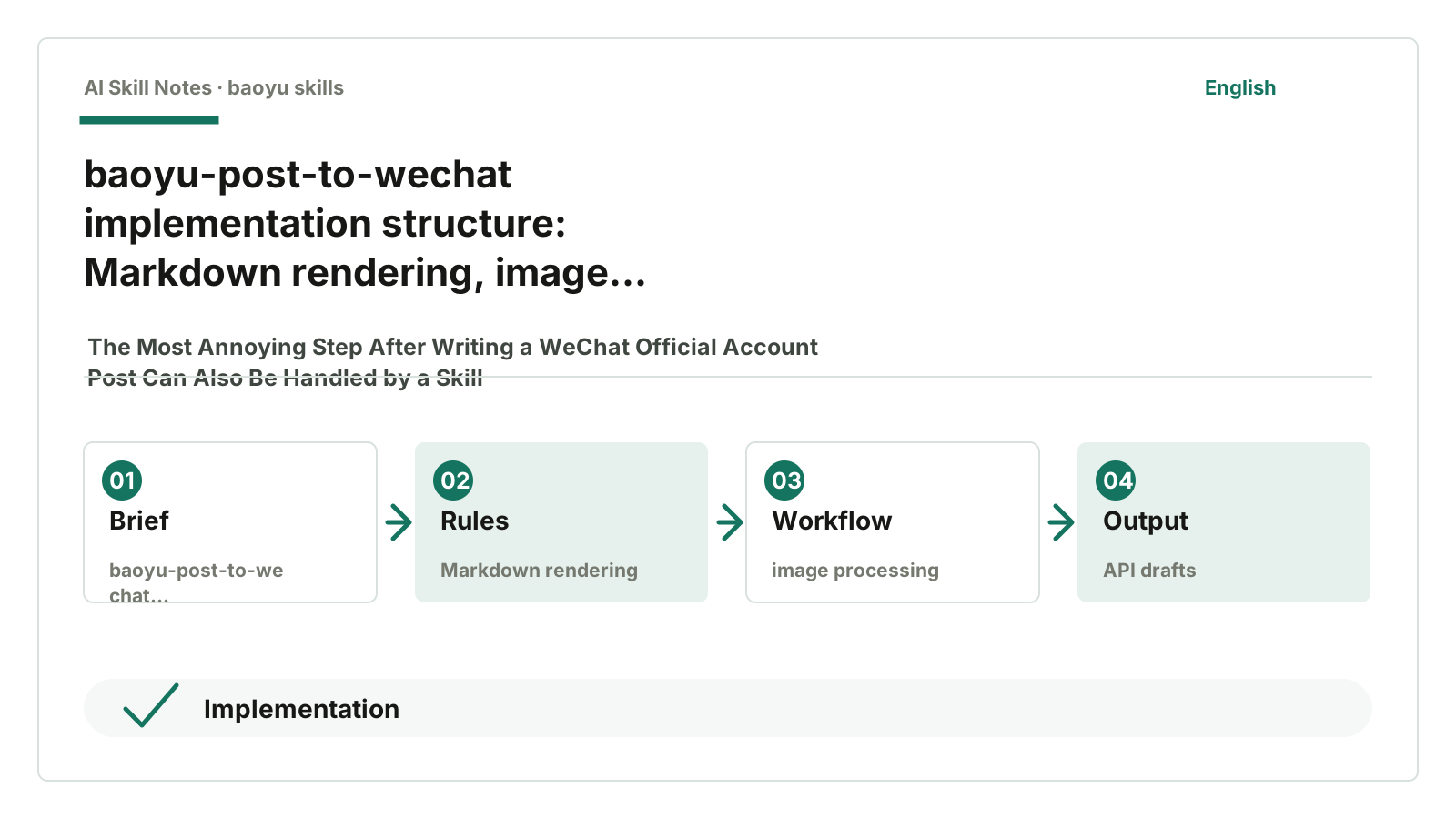
After running, it does several things:
Render Markdown
Upload content images
Upload cover image
Call Official Account API
Save to draft box
In the end, the Official Account backend will have a new draft.
Title, summary, author, cover, and content images are all there.
What the user does next is preview.
Check if the title looks good.
Check if the cover is cropped badly.
Check if it reads cramped on the phone.
It doesn’t make the final judgment for you.
It just takes care of the repetitive small steps.
3. How to use it: the quickest way to get started
This Skill is in Baoyu’s Skills repository:
https://github.com/JimLiu/baoyu-skills
Give this GitHub URL to your AI, then say:
Help me install the baoyu-post-to-wechat Skill from this repo.
After installation, you need to configure the Official Account info once.
You’ll need three things:
Official Account AppID
Official Account AppSecret
IP whitelist for the Official Account backend
These are near “Settings & Development / Development / Basic Configuration” in the Official Account backend.
A small reminder: don’t send your AppSecret in chat.
The right way is to have the AI guide you to save it to a local config file.
You can say:
Please guide me step-by-step to configure baoyu-post-to-wechat.
Keep the keys only on my machine; don’t let me send them in chat.
Once configured, every time you finish writing an article, just say:
Please save this Markdown article to my WeChat Official Account draft box.
Do not publish directly.
The first setup is a bit tricky.
After that, it’s much easier.
4. How does it actually work
Let’s get practical.
baoyu-post-to-wechat isn’t just a prompt saying “help me publish to WeChat Official Account.”
Behind it is a set of scripts that break publishing into steps.
The core files roughly are:
SKILL.md
scripts/md-to-wechat.ts
scripts/wechat-api.ts
scripts/wechat-article.ts
scripts/wechat-image-processor.ts
scripts/wechat-extend-config.ts
SKILL.md tells the AI when to trigger, what config to read first, whether to use API or browser, how to get title, summary, and cover.
md-to-wechat.ts converts Markdown into HTML usable by the Official Account.
wechat-api.ts calls the Official Account API to save the article as a draft.
wechat-article.ts uses a browser approach: opens Chrome, goes to the Official Account backend, and manually fills the editor like a human.
wechat-image-processor.ts handles content images. For example, if images are too large or in the wrong format, it compresses or converts them before uploading.
wechat-extend-config.ts reads configuration. Author name, theme color, default publishing method, comment settings all come from here.
So the real flow isn’t “AI just clicks around.”
It’s more like:
AI reads article and config
-> script converts Markdown to HTML
-> script identifies content images
-> images upload to Official Account
-> cover uploads as media
-> call draft/add to save draft
-> AI returns media_id and next steps
In this design, AI acts more like a coordinator.
The real work is done by scripts and Official Account APIs.
5. Follow an example to see how it runs
Take a normal Markdown article.
The article starts with frontmatter:
title: Article Title
summary: Article Summary
author: Author Name
coverImage: imgs/cover.png
The content has several images:
Content image: imgs/flow.png
Implementation image: imgs/architecture.png
You ask the AI to publish to the Official Account draft box.
The AI first reads config according to Skill rules.
For example, what the default theme is, who the author is, whether to use API or browser.
If using API, wechat-api.ts calls md-to-wechat.ts first.
This step does:
Extract title and summary
Render Markdown to HTML
Replace content images with placeholders
Handle external links as footnotes per WeChat style
Record each image’s local path
Why replace with placeholders?
Because images in WeChat content can’t just use local paths.
Local imgs/flow.png isn’t recognized by the Official Account backend.
The script needs to know “there was an image here,” upload it to WeChat, get the returned image URL, then replace the placeholder with the real <img> tag.
Content images use the media/uploadimg API.
Cover images are different.
Cover images upload as media assets, returning a thumb_media_id.
Finally, wechat-api.ts calls the draft API:
draft/add
The payload includes:
title
author
digest
content
thumb_media_id
need_open_comment
only_fans_can_comment
If successful, it returns a media_id.
This media_id is proof the draft saved successfully.
If the API route fails, for example due to IP whitelist issues, it will error out.
This isn’t mysterious.
The Official Account API will tell you: this IP is not in the whitelist.
At that point, you either add your current IP or switch to the browser route.
The browser route is slower but straightforward.
wechat-article.ts opens Chrome, goes to the Official Account backend, enters the editor, fills in title, author, pastes HTML, then replaces image placeholders one by one with uploaded images.
It’s not more advanced.
It’s just another path.
API is the front door.
Browser is mimicking human actions.
6. Why it’s useful: it turns hassle into clear boundaries
This Skill is useful not because it can “publish to WeChat Official Account” magically.
Its strength is that it clearly defines boundaries.
First, it defaults to saving drafts
WeChat articles aren’t just temporary messages.
Once published, readers see them immediately.
So it defaults to saving drafts, not direct publishing.
I’ll keep this boundary.
Automation handles repetitive tasks.
Humans do the final check.
Second, it acknowledges the API can get stuck on IP whitelist
Many publishing tools are idealistic.
Just fill in AppID and AppSecret, and it seems you can always publish.
In reality, the Official Account API has an IP whitelist.
If your machine’s IP isn’t added, the API rejects requests.
This Skill includes this in the config process and supports a browser fallback.
That’s much more practical.
Third, it carefully handles images
Images are the most common source of small problems in WeChat articles.
Content images must be uploaded.
Cover images must be uploaded.
Large images need compression.
Wrong formats need conversion.
Local paths must be replaced with WeChat URLs.
wechat-image-processor.ts handles these details.
These details seem minor but are crucial for a stable workflow.
Fourth, it separates configuration and execution
AppID, AppSecret, author name, comment settings, default publishing method shouldn’t be scattered in every conversation.
This Skill reads from config files.
You configure once and reuse.
This is safer.
Keys stay local.
Sensitive info appears less in chat.
7. If you want to write a similar Skill
The most valuable lesson from this kind of Skill isn’t “how to call a platform API.”
It’s how to break publishing into a verifiable process.
You can write it like this:
Use case:
User already has content and needs to save it to a platform’s draft box.

Trigger:
User says “publish to Official Account,” “save to draft,” “upload article,” or “generate platform draft.”

Input:
Article file, title, summary, author, cover image, content images, account config.

Output:
Platform draft, draft ID / media_id, preview or check reminders.

Workflow:
1. Read config.
2. Verify account credentials.
3. Parse article metadata.
4. Convert content format.
5. Process content images.
6. Upload cover image.
7. Save to draft box.
8. Return results and checks.

Key constraints:
- Don’t default to direct publishing.
- Don’t expose keys in chat.
- Upload images first; don’t keep local paths.
- Clearly report which step failed on errors.
- Provide browser or manual fallback if API fails.

Optional tools:
- Platform API
- Browser automation
- Markdown renderer
- Image compression / format conversion
- Config file reader

Possible extensions:
- Drafts for Xiaohongshu posts
- Drafts for Weibo long posts
- Multi-platform content distribution
- Pre-publish quality checks
The most important part to copy is the order.
First convert content into a platform-acceptable format.
Then process images.
Then save drafts.
Finally, let humans check.
If the order is mixed, problems multiply.
8. What I would add
If I continued improving this Skill, I’d add a pre-publish self-check.
Before saving drafts, have AI review:
Is the title too long?
Does the summary sound like an ad?
Does the cover image exist?
Are there too many content images?
Are there any local absolute paths in the article?
Are there any external links unsuitable for WeChat?
These checks aren’t complicated.
But very practical.
Many publishing mishaps aren’t big problems.
They’re small things overlooked.
Adding a check in the automation flow saves a lot of back-and-forth fixes.
9. Finally, a copy-paste action plan
If you just want to use it:
Have AI help you configure once, then every time you finish writing, say:
Please use baoyu-post-to-wechat to save this article to my WeChat Official Account draft box.
Do not publish directly.
Please check the title, summary, cover, and content images before publishing.
If you want to learn to write one:
Remember this design: publishing Skills need boundaries.
They can automate repetitive tasks.
But the last step is best left to humans.