I used to think the hardest part of letting AI edit videos was “getting it to understand the visuals.”
Later, I realized this idea was a bit naive.
A 10-minute video at 30fps has 18,000 frames. You could have the model watch frame by frame, and it can watch some, but that’s not the most efficient entry point for editing.
When editing talking-head videos, interviews, tutorials, or product launches, many decisions happen first in the audio:
- Which sentence was said wrong
- Which pause is too long
- Where can cuts happen between words
- Which reactions should be kept
- Where subtitles should follow
You do need to look at the visuals, but you shouldn’t dump all frames to the model right away.
The idea behind browser-use/video-use is clear: first organize the video into AI-readable materials, then let the Agent do the editing.
There’s a line in its README that captures this idea perfectly: LLM never watches the video, it reads it.
This sounds a bit roundabout but is actually straightforward. It first lets the program convert the video into text, timestamps, waveforms, and a few timeline images. The model reads these structured materials and then decides how to edit.
1. The problem isn’t “Can AI edit?” but how the material is provided
If you just say to AI:
Help me edit these materials into a publishable video.
That’s too vague.
How many clips are there? How long is each? Are there repeated takes? Did the speaker make mistakes? Which sentences are core information? Should subtitles be burned in? Portrait or landscape?
If none of this is organized, AI will just scramble on the spot.
video-use first does a simple but important thing: it turns the materials into an editing directory.
It requires all outputs to be placed under the user’s material folder in an edit/ subfolder:
<videos_dir>/
├── <source files, untouched>
└── edit/
    ├── project.md
    ├── takes_packed.md
    ├── edl.json
    ├── transcripts/
    ├── verify/
    ├── preview.mp4
    └── final.mp4
This step is like organizing materials before editing.
Source files remain untouched, transcripts are cached, editing decisions are written as edl.json, preview and final outputs are separated. The Agent doesn’t “edit by feel” in a chat; it works inside a clear project directory.
2. It lets AI read two layers of video materials
The first layer is the transcript.
helpers/transcribe.py calls ElevenLabs Scribe to convert video audio into a word-level transcript. Word-level is important because edit points need to align with word boundaries.
For multiple clips, helpers/transcribe_batch.py transcribes in batch.
Then, helpers/pack_transcripts.py converts these JSONs into a Markdown file better suited for the model: takes_packed.md.
This file groups words into phrases by silence and speaker changes, with lines like:
[002.52-005.36] S0 Ninety percent of what a web agent does is completely wasted.
[006.08-006.74] S0 We fixed this.
The model reading this knows when each sentence appears, who said it, and if there were pauses.
The second layer is visual on demand.
helpers/timeline_view.py doesn’t make the model scan the whole video. It only generates a PNG when a cut decision is needed: showing a filmstrip of sampled frames, waveform, word labels, and silent zones.
For example, if the model sees a pause in the transcript but isn’t sure if it’s a natural breath, it can run timeline_view.py on that segment to check before deciding to cut.
The cleverness of video-use is here: text is the main view, visuals are a drill-down tool.
It’s not that visuals aren’t needed, just don’t look at everything blindly from the start.
3. Before editing, it lets the Agent state a strategy
SKILL.md contains 12 hard rules.
Here are some that best show its character:
Subtitles are applied LAST in the filter chain
30ms audio fades at every segment boundary
Never cut inside a word
Strategy confirmation before execution
All session outputs in <videos_dir>/edit/
These aren’t aesthetic preferences but production correctness.
If subtitles aren’t burned last, overlays might cover them; without 30ms fades, audio can pop; cutting inside a word makes speech sound like a bite was taken out.
It also requires the Agent to propose a strategy first, then wait for user confirmation.
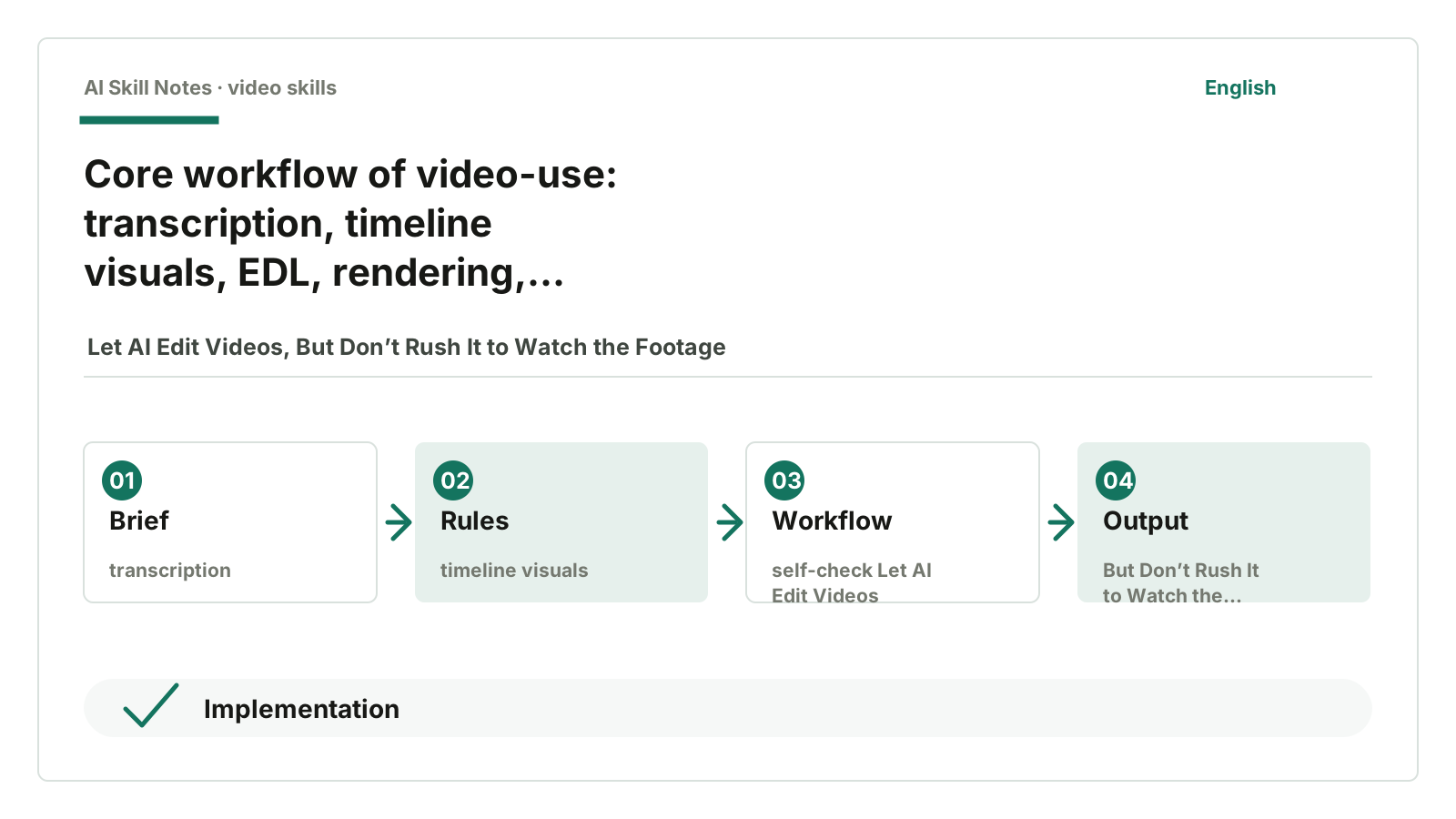
A typical workflow looks like:
Material inventory
Transcription
Pack takes_packed.md
Read transcript
Generate timeline view on demand
Propose editing strategy
Wait for user confirmation
Generate edl.json
Render preview
Self-check cut points
Output final.mp4
This feels like a reliable editor: first telling you “here’s how I plan to edit,” then acting.
Many AI tools like to execute directly, as if speed equals quality. Video editing is different. It involves trade-offs—what to keep, where to pause, which reaction is a punchline—can’t be fully automated.
video-use doesn’t exclude humans; it places them at the strategy confirmation step.
4. Why render.py deserves a separate mention
From the above, you might think it’s just a “transcription + prompt” Skill.
It’s not.
Behind it is a script that does actual editing and compositing, the most important being helpers/render.py.
This script does several things according to the EDL:
- Extracts each clip by start/end times.
- Applies color grading and 30ms audio fades to each segment.
- Concatenates clips into a base video.
- Applies overlays or subtitles through a filter graph.
- Subtitles enter the filter chain last.
It also handles practical video issues like HDR to SDR conversion, portrait footage, subtitle safe zones, and output timeline subtitle offsets.
The key isn’t “it uses FFmpeg”—many tools do.
The key is it encodes common editing pitfalls as hard rules, then scripts follow those rules.
For example, subtitle timing can’t just use original material timestamps. After stitching clips, subtitles must be recalculated to output time. SKILL.md states this rule:
output_time = word.start - segment_start + segment_offset
These details are tedious but valuable.
Because if a video tool fails here, it might render but subtitles float incorrectly. Users see “AI editing is unreliable,” but the root cause is engineering details not handled.
5. Public feedback: high interest, engineering challenges
This project is quite popular. GitHub API data as of July 17, 2026: 16,981 stars, 2,044 forks, 56 open issues.
Stars don’t prove quality but show demand: many want to use Agents to edit videos.
More interesting are its issues and PRs.
PR #103 mentions CJK caption support, Windows fixes, EDL-level style/audio overrides. Chinese and CJK subtitles and cross-platform issues are now in maintenance scope.
PR #104 adds --vertical output, handling portrait blur-pad and split-stack layouts. For short video platforms, this is not a minor feature.
PR #109 fixes portrait sources with rotation metadata. Mobile videos often carry rotation metadata; these bugs are very real and typical for editing tools.
These feedbacks tell me: video-use is no longer a pure concept demo; it’s tackling real video engineering challenges.
Of course, it’s not a beginner web tool. It requires FFmpeg, an ElevenLabs API key, and an Agent capable of running local scripts. You can’t expect it to work like a plug-and-play video app.
6. How to install and use
The repo is here:
https://github.com/browser-use/video-use
Normal users don’t need to type commands themselves. Give this GitHub address to AI and say:
Help me install browser-use/video-use.
Read install.md first, then SKILL.md.
After installation, tell me how to hand over a material folder.
When ready to edit, give it a clear task:
I have a material folder with 6 product launch talking-head clips.

Goals:
- Edit into under 60 seconds
- Portrait 9:16
- Keep product positioning, core features, and closing CTA
- Remove mistakes, repeated takes, and long pauses
- Add Chinese subtitles

Please transcribe and inventory the materials first, then give me an editing strategy. Wait for my confirmation before proceeding.
This request has two benefits.
It tells the Agent the goal and reminds it to confirm the strategy first.
The worst way to use video-use is to treat it like a magic button to “edit directly.” That bypasses its most valuable design.
7. How to implement your own system
If you want to write a similar Skill, don’t start with “AI automatically edits videos.”
Start with material structure.
A minimal version might look like:
Applicable scenarios:
Editing talking-head, interviews, tutorials, product launch videos.

Inputs:
- A material folder
- Target duration
- Platform aspect ratio
- Must-keep content
- Must-remove content
- Subtitle and style requirements

Intermediate products:
- transcripts/*.json
- takes_packed.md
- timeline PNG
- edl.json
- preview.mp4
- final.mp4

Workflow:
1. Inventory materials
2. Transcribe audio
3. Pack transcript
4. Let Agent propose strategy based on transcript
5. User confirmation
6. Generate EDL
7. Render with FFmpeg
8. Self-check around cut points
9. Output final
Then write hard rules for what can’t go wrong:
Don’t cut inside words.
Subtitles must be recalculated to output timeline.
Apply short fades at every cut.
Show preview only after self-check passes.
All outputs go into edit/, don’t pollute source folder.
At this point, the Skill has a backbone.
The rest—style and aesthetics—go to the strategy phase. You can let users choose fast-paced, documentary, product launch, tutorial styles, but the underlying materials and editing correctness must come first.
8. My conclusion
What I want to learn most isn’t that it “can edit videos.”
Many tools can edit videos.
Its strength is this: it doesn’t force AI to swallow the whole video but first turns it into readable, searchable, and executable materials.
This is very inspiring for writing Skills.
Whenever materials are large, information dense, and direct model processing is expensive, you can use this trick: create an intermediate representation. Videos can be takes_packed.md and timeline_view.png, code can be symbol graphs, web pages can be Markdown, film analysis can be frames + subtitles + schema.
AI doesn’t get weaker by seeing less.
Sometimes the opposite.
It sees less noise and can focus judgment where it matters.
If you just want to use it:
Give the repo address to AI, let it install and process a material folder. Don’t throw too much material the first time; try one or two talking-head clips to test the flow.
If you want to learn to write your own:
Design intermediate products first, then write prompts. Don’t start with “Help me automatically complete X task.”
How you can write your own Skill
Applicable scenarios: Let Agents assist editing talking-head, interviews, tutorials, and product videos.
Trigger: User puts video materials in a folder and says “Help me edit into one video.”
Inputs: Original video files, target duration, platform aspect ratio, keep/remove preferences, subtitle and color grading requirements.
Outputs: edit/final.mp4, edl.json, takes_packed.md, subtitles, preview and verification files.
Workflow: Transcribe first, read transcript, view timeline visuals on demand, confirm strategy, generate EDL, then render and self-check.
Key constraints: Don’t edit without strategy confirmation; don’t cut inside words; burn subtitles last; apply short fades at cuts; outputs must not pollute the Skill repo.
Optional tools: FFmpeg, ElevenLabs Scribe, PIL, Remotion, HyperFrames, Manim.
Possible improvements: Add Chinese filler detection for Chinese talking-heads, subtitle safe zones for video platforms, Chinese title cards, and covers better suited for domestic platforms.