AI making PPTs is quite a curious thing.
You might think it can’t do it, but it can. Give it a topic, wait a bit, and a PPT is ready. Cover page, table of contents, content pages, ending page—nothing missing.
You might think it can, but somehow it always feels a bit off.
Ordinary PPTX files are editable, but they look too plain. Three-column cards, rounded rectangles, light gradients—like templates freshly bought from a marketplace, still with tags on.
Full-page images are different. Infographics, lighting effects, complex structures—all there at once. They look convincing. But they have their quirks: want to fix a typo? It ignores you; want to move an icon? It ignores you too; boss says “swap these two modules,” and you basically have to start over.
So the trouble with PPT is this: editable ones don’t look good, and good-looking ones aren’t editable.
GordenSuperPPTSkills tackles this problem head-on. It doesn’t try to be a “one-step perfect PPTX generator.” Instead, it takes a clunky route: first turn the PPT into images, then break the images apart and reassemble into an editable PPTX.
Clunky, yes, but sometimes clunky ways are more reliable.
1. What’s in this repository?
The repo is here:
https://github.com/GordenSun/GordenSuperPPTSkills
Looking inside, there are three Skills:
GordenImagePPTGen
GordenImage2PPTX
GordenSuperPPTSkill
The names are long, don’t be intimidated.
GordenImagePPTGen is responsible for first turning the PPT into images. You provide the topic, content, number of pages, and style; it generates a PNG for each page, then composes an image-based PPTX.
GordenImage2PPTX does the reverse: it takes a PPT image or screenshot and tries to restore it into an editable PPTX.
GordenSuperPPTSkill is the main entry point. It chains the first two: generate the image-based PPT, then restore page by page.
The whole pipeline looks like this:
Content → Image-based PPT → Layered restoration → Editable PPTX
This isn’t your typical PPT template. It’s more like a small production line.
2. It first acknowledges a reality
Many AI PPT tools like to oversell.
It’s like if you say “make me a PPT,” it should handle content understanding, visual design, file generation, object layering, editable structure, plus some aesthetics—all in one go.
Sounds great.
But in reality, these are very different skills.
Image models are great at drawing full-page visuals. Ask it for a tech-style infographic page, it can blend background, cards, arrows, icons, charts into a convincing layout.
PPTX is another story. PPTX isn’t just an image; it’s a bunch of objects: text boxes, images, shapes, coordinates, layers, fonts, colors. To edit text, it must be a text box; to move an icon, it must be a separate object.
Gorden’s Skill set makes a simple choice: don’t force the model to design with native PPT elements from the start. Let it create the visual first, then find a way to break the visual back into editable structure.
Like making a visual draft first, then slicing and restoring.
Only here, the slicer is half AI, half script.
3. Step one: generate the image-based PPT
Let’s look at GordenImagePPTGen.
Its SKILL.md breaks the process into five steps:
A1 Confirm requirements
A2 Write outline.json
A3 Write prompt for each page
A4 Use imagegen to generate images
A5 Use compose_pptx.py to assemble image-based PPTX
The last step is straightforward. compose_pptx.py just puts each PNG into the PPTX, one full-page image per slide.
The tricky part is earlier.
It first writes outline.json, clearly defining each page’s topic, content, visual framework, and page text. Then it generates a prompt for each page. This prompt can’t just say “advanced, tech, business, simple”—that sounds like a request but says nothing.
It must specify colors, layout, titles, module text, chart types, font sizes, and hierarchy.
There’s a rule emphasized repeatedly in the repo: no empty templates.
Don’t underestimate this.
Many AI PPTs look impressive at first glance but are full of placeholders. Titles say Your Title Here, cards have lorem ipsum, charts look borrowed from a stock library. After looking, you realize the work is still on you, just with some psychological comfort added.
GordenImagePPTGen doesn’t allow this. Each page must have real text—no lorem, no placeholders, no empty shells with just frames.
So it requires thick content first: introductions, modules, key numbers, bottom summary banners—whatever can be arranged, arrange it first. If content is too thin, the model can only rely on decoration, and the result tends to be messy.
In short, this step writes a construction plan for the AI, limiting its free rein.
Where to put the title, where modules go, where charts go, which words must appear exactly—all must be specified. If you don’t specify, it will improvise. And when AI improvises, things usually get lively.
4. Step two: break the image back into PPTX
GordenImage2PPTX is the more interesting part of this set.
It doesn’t take the obvious shortcut: just put the original image into PPT and cover it with some text boxes. That looks “editable,” but the old text remains in the background image. Changing text is like pasting two ads on a wall.
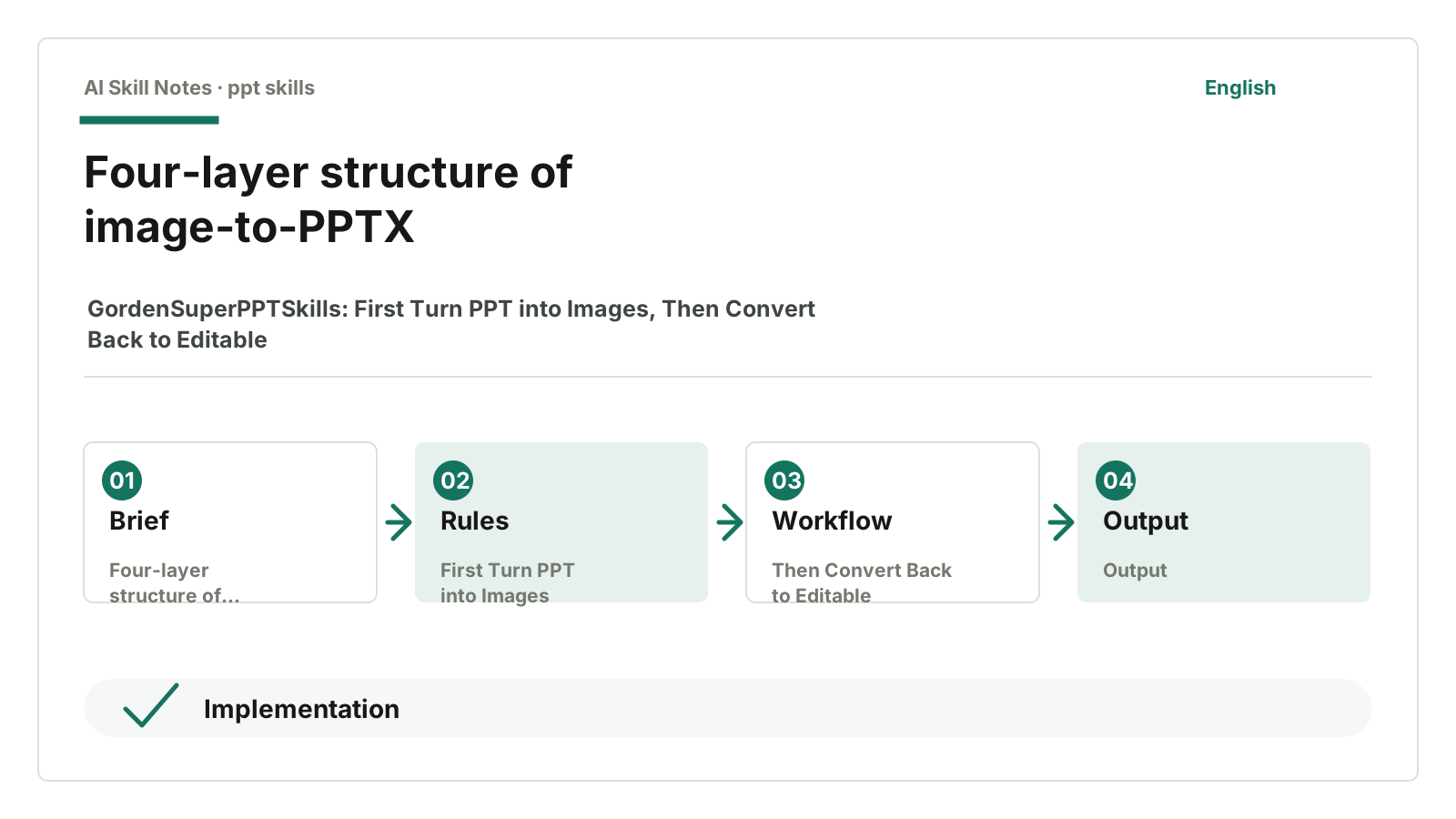
It requires breaking one PPT image into four layers:
Background image
Frame image
Icons and decorations
Regular text
Background keeps only base colors, gradients, textures, and large background areas. Text, icons, cards, and frames are erased.
Frame image handles the page skeleton. Containers, cards, title bars, separators, connectors, chart skeletons, axes, trend lines—all go here.
Icons and decorations are separated out. Small icons, decorative elements, artistic text are treated as image elements.
Regular text is recognized visually, then written as PPT text boxes. Content, position, font size, color, weight, and alignment are all recorded.
Finally, they are stacked back in order:
Background → Frame → Icons → Text
A PPTX assembled this way offers some room for editing. Changing text won’t affect old text in the background; moving icons won’t drag the whole page. The frame is still a transparent image, but at least it’s separated from the text.
5. The scripts are where the real work happens
If an article only says “it uses AI to convert images to PPT,” that’s almost nothing.
The hard work in the repo is done by these scripts:
probe_palette.py
chroma_key.py
slice_grid.py
compose_pptx.py
layout_guard.py
placement_qa.py
visual_compare_qa.py
probe_palette.py first checks if there’s green in the original image. Because later it often uses green screen chroma keying; if the page already has a lot of green, using green as the background color risks removing real content.
chroma_key.py handles transparency extraction. Frame and icon images are generated on solid color backgrounds, then this color is removed to leave transparent PNGs.
slice_grid.py cuts icons. The model arranges many icons in a grid; the script slices them into individual images.
compose_pptx.py assembles everything. Background at the bottom, frame on top, icons placed by coordinates, text written as text boxes.
layout_guard.py checks if coordinates and font sizes are obviously off.
placement_qa.py draws bounding boxes on source and preview images to help check if text and icons are misplaced.
visual_compare_qa.py generates side-by-side, overlay, and difference images to judge restoration accuracy.
The division of labor is clear: the model handles seeing, drawing, and recognition; scripts handle chroma keying, slicing, coordinates, assembly, and checks.
One imagines, one does the hard work.
This combo is much more reliable than relying on a single prompt.
6. Running through one screenshot example
Suppose you have a tech-style PPT screenshot.
White background, faint grid in the top right. Three cards in the middle, each with a blue title bar above. Each card has an icon, title, and two lines of description. At the bottom, a green summary banner.
This Skill set would roughly run like this.
First, it probes colors. If the page has little green, it uses green as the chroma key background; if the page is already green-heavy, it switches to magenta or purple.
Then it generates a clean background. It erases text, icons, cards, and frames from the screenshot, leaving only base colors, grids, and lighting. This background becomes the PPT’s bottom layer.
Next, it extracts the frame. The three cards, title bars, separators, bottom banner all go into the frame image; text and icons are excluded. The frame image is first generated on a solid color background, then chroma keyed to transparent frame.png.
Icons are handled separately. It checks which elements are covered by the frame to avoid duplication. Remaining icons and decorations are arranged in a grid image, chroma keyed, then sliced into individual PNGs.
Text is processed last. AI reads regular text from the source image, recording coordinates, font size, color, and weight. Artistic text is excluded because normal text boxes can’t replicate those styles.
Finally, it assembles. Background at the bottom, frame.png on top, icons placed by coordinates, text written as text boxes. If preview shows misalignment, layout.json is adjusted; if the frame misses a line, the frame image is regenerated.
It sounds methodical.
But image restoration isn’t magical. It relies on layer-by-layer decomposition and alignment.
7. How to install and use
Give this GitHub address to your AI:
https://github.com/GordenSun/GordenSuperPPTSkills
Then say:
Help me install GordenSuperPPTSkill, GordenImagePPTGen, and GordenImage2PPTX from this repo.
To generate an editable PPT directly from content, say:
Use GordenSuperPPTSkill to generate an editable PPTX of about 8 pages based on the content below.
Style: tech business, high information density, but not flashy.
To generate an image-based PPT only:
Use GordenImagePPTGen to create a 6-page image-format PPT from the content below.
Each page must contain real text, no placeholders.
To restore an editable PPTX from a PPT screenshot:
Use GordenImage2PPTX to restore this image into an editable PPTX.
Please strictly follow the four-layer process: background, frame, icons, text.
Don’t expect it to be too easy. The README notes it mainly targets Codex because it requires image generation and GPT’s visual capabilities. Image-to-editable PPTX conversion consumes a lot of quota.
Regular chat windows probably won’t run it stably. It’s best to have an Agent environment with file system, image generation, and script execution capabilities.
8. If you want to write a similar Skill yourself
If you want to copy this Skill, don’t just focus on PPT itself—copy its task decomposition method first.
First, split into stages.
Don’t just say “help me generate a PPT.” Break it into:
Stage A: generate image-based finished product
Stage B: decompose images into editable structure
Second, keep artifacts at each stage.
outline.json
prompts/NN-*.md
imagegen-manifest.json
slides/NN-*.png
layout.json
preview/slide_*.png
editable.pptx
These files aren’t decorations. They let you know what was done at each step and where to fix if something breaks. Without intermediate outputs, failures just lead to blaming each other.
Third, make AI leave evidence.
Gorden’s Skill requires writing a manifest recording where each page image was generated, copied, and which prompt was used. This isn’t bureaucracy; it prevents the Agent from cutting corners.
Agents love shortcuts. Without actually calling the image model, it might just programmatically draw a similar image; without extracting icons, it might crop the original image; without making a frame layer, it might use the original image as background and just overlay text.
If you don’t lock it down, it will dare to cheat.
Fourth, clearly state prohibitions.
This repo has many bans: no faking imagegen with SVG/HTML/Canvas, no adding text on generated images with code, no using the original image as background and overlaying text, no redrawing frames with PPT shapes.
These may sound nagging but are useful. AI rarely chooses the hardest but correct path; it usually takes the easiest way.
Fifth, write QA into the process.
After generation, don’t just glance over it; checks must be explicit:
Generate preview
Draw bounding boxes
Do visual comparison
Check manifest
If not qualified, return to the corresponding step
Only after this does the Skill become something reusable.
9. My judgment
What I most want to remember about this set isn’t “AI can make fancy PPTs.” Beautiful images aren’t rare anymore.
What’s interesting is its honesty.
Image generation is image generation; PPTX editing is PPTX editing. It separates these two tasks, first getting a visually acceptable draft, then using layering, chroma keying, slicing, coordinates, text boxes, and QA to gradually restore it into an editable structure.
This approach isn’t easy, consumes quota, and tests patience. But complex tasks sometimes can’t be done in one gulp. First get a passable result, then break it down into maintainable structure—this idea is quite practical.
The same goes for writing Skills.
Write fewer vague “please design carefully” lines, and more clear inputs, outputs, prohibitions, and acceptance evidence for each step. Only then does AI have a chance to work honestly.